Securing aerOS Domain with TLS Using Cert-Manager and Let’s Encrypt
Introduction
aerOS provisions access to (each) domain APIs over a secure and private channel. Encrypted communication among aerOS domains or access from third party clients to aerOS APIs are foreseen. TLS (Transport Layer Security) is the standard protocol for securing these communications and aerOS leverages Cert-Manager (supporting Let’s Encrypt or self-signed certificates) to manage and automate the TLS certificate issuance.
aerOS integrates Cert-Manager and foresees certificate issuance and management either using Let’s Encrypt, which is a widely trusted Certificate Authority (CA), when a public IP and a FQDN are available or self-signed method when aerOS domains are framed in private networks and not interfacing the outer world.
This guide provides a comprehensive walkthrough on deploying Cert-Manager on aerOS, K8s based cluster, domain, configuring it to work with Let’s Encrypt, and automating the issuance and renewal of TLS certificates. This ensures that all external traffic to aerOS domain is encrypted, maintaining the confidentiality and integrity of data transmitted between clients and services.
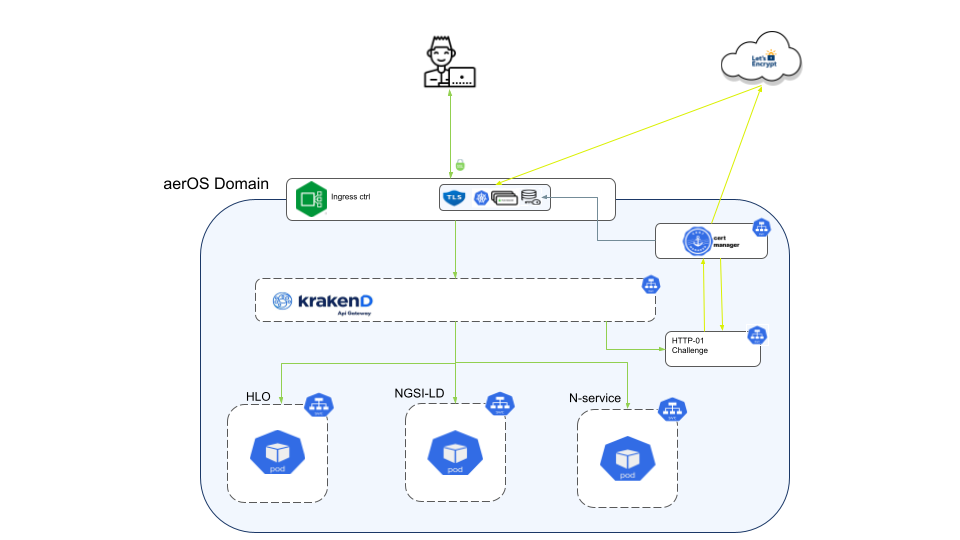
Features
Request Certificate: When the Ingress resource is applied and includes the appropriate annotations for Cert-Manager, Cert-Manager notices the request for a certificate and creates a Certificate resource in Kubernetes to manage it.
ACME Protocol: Cert-Manager then uses the ACME (Automated Certificate Management Environment) protocol to communicate with Let’s Encrypt, requesting a certificate for the specified domain name.
Domain Validation: Let’s Encrypt requires proof that you control the domain for which you’re requesting a certificate. Cert-Manager automates this by creating a temporary Pod or configuring the Ingress (via a challenge, such as HTTP-01) to prove ownership of the domain to Let’s Encrypt.
Certificate Issuance: Once domain validation is successful, Let’s Encrypt issues the certificate to Cert-Manager, which then stores it in a Kubernetes Secret.
Certificate Injection: The Nginx Ingress controller is configured to use this Secret for TLS termination, meaning it decrypts incoming HTTPS traffic and forwards it to the appropriate backend service as HTTP.
Place in architecture
In a Kubernetes-based architecture, securing the communication channels is crucial. The integration of Cert-Manager and Let’s Encrypt within the aerOS domain plays a pivotal role in achieving this. Here’s how these components fit into the overall architecture:
Ingress Controller: - Role: Acts as the entry point for all external HTTP/HTTPS traffic, directing it to the appropriate services within the Kubernetes cluster. - Integration: The Ingress Controller, such as Nginx, is configured to use TLS certificates managed by Cert-Manager for secure communication.
Cert-Manager: - Role: Automates the process of acquiring, renewing, and managing TLS certificates within the Kubernetes cluster. - Integration: Cert-Manager requests certificates from Let’s Encrypt and stores them as Kubernetes Secrets, which are then used by the Ingress Controller to terminate TLS connections.
Let’s Encrypt: - Role: Provides a trusted Certificate Authority (CA) for issuing free SSL/TLS certificates. - Integration: Cert-Manager uses the ACME (Automated Certificate Management Environment) protocol to communicate with Let’s Encrypt for certificate issuance and renewal.
Kubernetes Secrets: - Role: Securely store the issued TLS certificates and keys. - Integration: These secrets are referenced by the Ingress Controller to handle secure HTTPS connections.
KrakenD API Gateway (if used): - Role: Acts as a gateway that handles API requests, providing features such as rate limiting, request transformation, and more. - Integration: The Ingress Controller routes traffic to KrakenD, which then directs it to the appropriate backend services. KrakenD can also be configured to support TLS, ensuring secure API communications.
By integrating these components, the architecture ensures that all external traffic entering the Kubernetes cluster is securely encrypted. This not only protects the data in transit but also builds trust with clients by providing secure and verifiable communication channels. In summary, the combination of Cert-Manager, Let’s Encrypt, Ingress Controller, and Kubernetes Secrets forms a robust system for managing TLS certificates and ensuring secure communication within the aerOS domain.
User guide
Prerequisities
A record DNS name
Ports open: 80 for HTTP and 443 for HTTPS
Helm v3.12.1 or above
Nginx Ingress controller
Cert-Manager
KrakenD (optional)
Note
The following installation prerequisites installing KrakenD in the aerOS Domain. To secure the connection without KrakenD, visit https://cert-manager.io/docs/tutorials/acme/nginx-ingress/
Installation
Cert-Manager:
helm repo add jetstack https://charts.jetstack.io --force-update
helm repo update
helm install \
  cert-manager jetstack/cert-manager \
  --namespace cert-manager \
  --create-namespace \
  --version v1.14.2 \
  --set installCRDs=true
Configuration options
Step 1: Deploying a Web Server
To verify ownership with Let’s Encrypt, it’s necessary to deploy a simple Pod running a small HTTP server to respond to the HTTP-01 challenge. In the example provided, we use a demo application named kuard (Kubernetes Up and Running) to fulfill this challenge. This involves deploying both a simple Pod and a corresponding service within the cluster.
Deployment:
kubectl apply -f https://raw.githubusercontent.com/cert-manager/website/master/content/docs/tutorials/acme/example/deployment.yaml
Service:
kubectl apply -f https://raw.githubusercontent.com/cert-manager/website/master/content/docs/tutorials/acme/example/service.yaml
Step 2: KrakenD
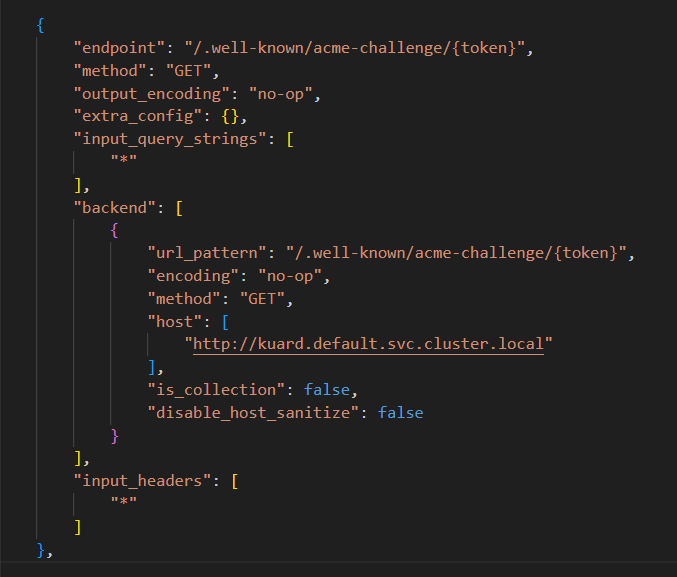
Let’s Encrypt issues a token to your ACME client (Cert-Manager), which then places a file containing the token and a thumbprint of your account key on your web server at http://<YOUR_DOMAIN>/.well-known/acme-challenge/<TOKEN>. After informing Let’s Encrypt that the file is in place, Let’s Encrypt attempts to retrieve it. To facilitate this retrieval, proper routing must be configured to allow Let’s Encrypt access to the web server. Routing passes through Nginx and Krakend before reaching the kuard web server. Therefore, configuring the Krakend API gateway to direct traffic to the web server is a crucial first step.
To ensure the incoming request http://<YOUR_DOMAIN>/.well-known/acme-challenge/<TOKEN> reaches the web server, add a path in Krakend as shown below.
Note
The kuard application is deployed in the default namespace http://kuard.default.svc.cluster.local. If deployed in a different namespace, adjust the FQDN accordingly, for example, http://kuard.<yournamespace>.svc.cluster.local.
Step 3: Nginx Ingress Controller
To expose the Krakend service outside of the cluster, we define a rule in the Ingress resource to route all the incoming traffic to the Krakend service.
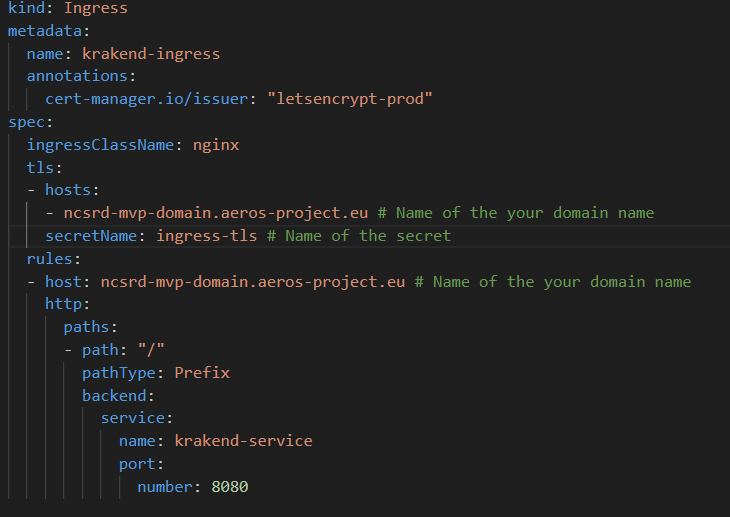
kubectl apply -f krakend-ingress.yaml
Verify it was deployed:
kubectl get ing
Output:
NAME              CLASS   HOSTS                               ADDRESS        PORTS
krakend-ingress   nginx   ncsrd-mvp-domain.aeros-project.eu   10.220.2.210   80, 443
Step 4: Creating and Verifying the Issuer
An Issuer in Cert-Manager defines the method by which TLS certificates are requested. In Kubernetes, Issuers are scoped to a single namespace, allowing for namespace-specific certificate management. Alternatively, ClusterIssuer offers a cluster-wide solution, applicable across all namespaces.
In ncsrd Domain, we utilized an Issuer within the default namespace, as demonstrated in the example below:
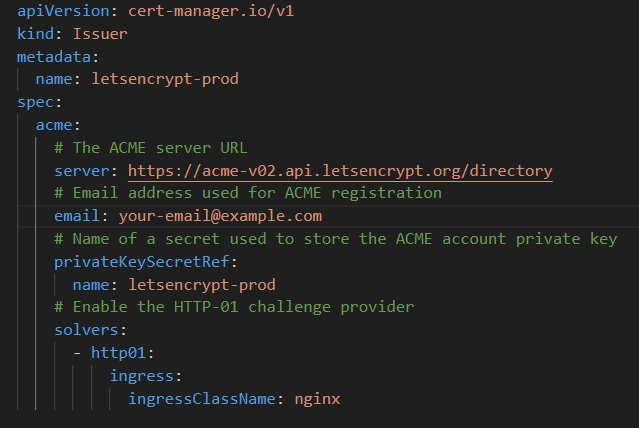
Note: If opting to use a ClusterIssuer for cluster-wide certificate management, remember to annotate your Ingress resources with cert-manager.io/cluster-issuer to specify the ClusterIssuer to be used.
Creating the Issuer:
Execute the following command to apply the Issuer configuration:
kubectl apply -f issuer.yaml
Verifying the Issuer Status:
To check the status and ensure the Issuer has been correctly set up, use:
kubectl describe issuer letsencrypt-prod
Cert-Manager will interpret the annotation (cert-manager.io/issuer: "letsencrypt-prod") from the Ingress resource and proceed to create a TLS certificate accordingly. You can verify the existence and status of requested certificates by:
kubectl get certificates
Output:
NAME          READY   SECRET        AGE
ingress-tls   True    ingress-tls   73d
Important Note on Secrets:
The Kubernetes Secret used in the Ingress must match the name of the secret defined in the certificate configuration. This ensures the Ingress controller can successfully retrieve and use the certificate for TLS.
Upon successful certificate issuance, Cert-Manager creates a Secret containing the certificate details, matching the secret name specified in the Ingress resource configuration.
To view the created Secret:
kubectl get secret ingress-tls
Output:
NAME          TYPE                DATA   AGE
ingress-tls   kubernetes.io/tls   2      154d
Following the steps outlined above, your domain name is now secured with TLS. This encryption ensures that the data transmitted to and from your domain is protected. You can verify the successful implementation of TLS in two ways:
From the Terminal:
Verify the TLS setup by executing a curl command that makes a verbose request to your domain, specifically requesting to use TLS version 1.2:
curl https://your-domain.example.com --verbose --tlsv1.2 --tls-max 1.2
For example, to check the TLS configuration for the ncsrd domain ncsrd-mvp-domain.aeros-project.eu, use the following command:
curl https://ncsrd-mvp-domain.aeros-project.eu/types?details=true --verbose --tlsv1.2 --tls-max 1.2
From the Browser:
https://ncsrd-mvp-domain.aeros-project.eu/types?details=true